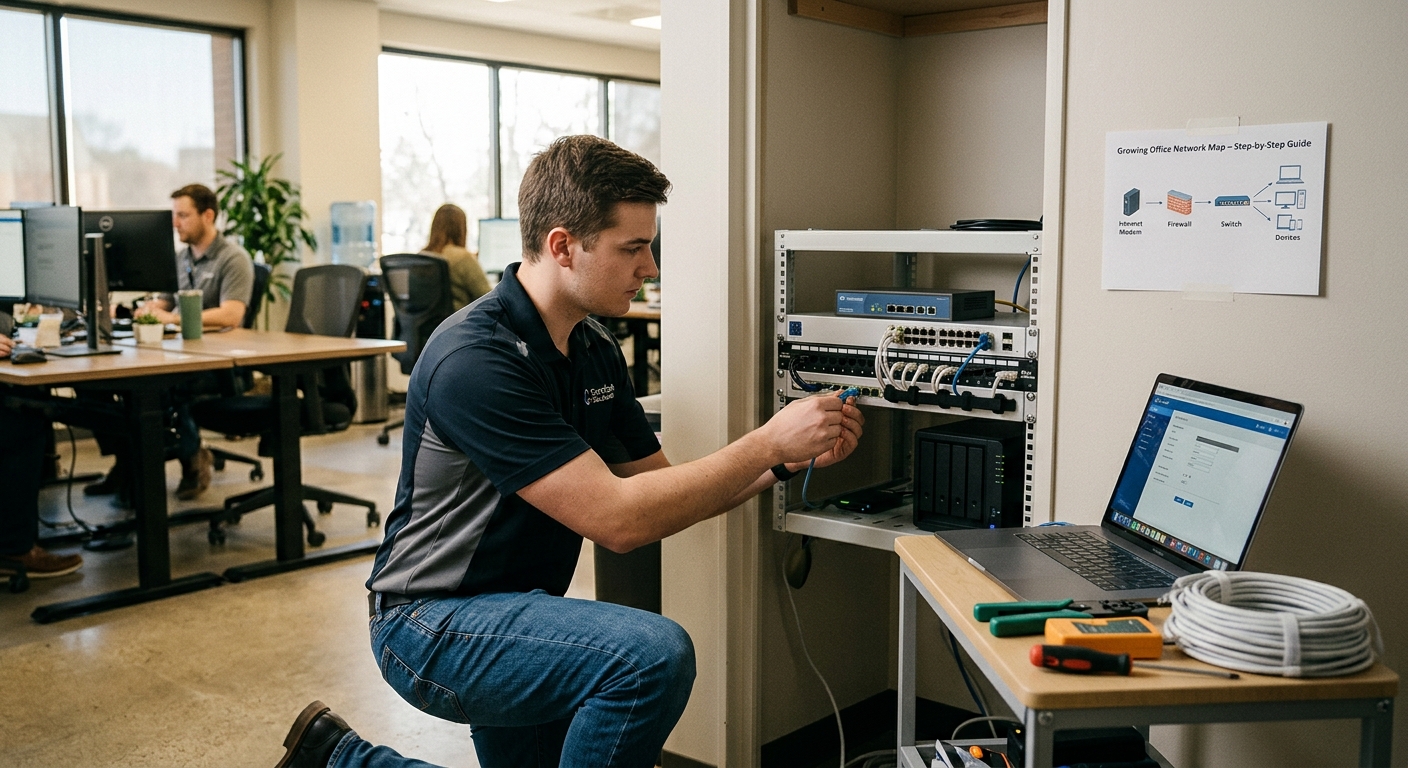
A network engineer configures office networking equipment and structured cabling to support a growing small business network.
The first office network I ever rebuilt belonged to an accounting firm with eleven people, two printers, and one very tired consumer router sitting on top of a filing cabinet. Every afternoon around three o’clock, the internet “went slow,” and the partners asked me to figure out what was wrong with their small business network setup. Naturally, they blamed their provider, and the provider blamed the building. However, after an hour with a laptop and a cable tester, the real problem showed up: a single flat network where the guest WiFi, the security cameras, the phones, and the payroll workstation all fought for the same small box. On top of that, nobody had touched its firmware in four years.
That story is not unusual. In fact, in close to two decades of designing networks, I have found that most small offices don’t fail because of one bad purchase. Instead, they fail because the network grew one device at a time without a plan. In other words, a small business network setup done right is less about buying expensive gear and more about making a handful of good decisions in the right order.
For that reason, this guide walks through those decisions the way I approach them on a real job, from the first walkthrough to the day I hand over the documentation. Whether you have eight employees or forty, the steps are the same. Only the scale changes.
Why Growing Offices Need a Real Small Business Network Setup
Most businesses start with whatever the internet provider installed. Typically, that box is a modem, router, switch, and wireless access point squeezed into one plastic shell. For a three person startup, it works fine. Once you pass ten people, however, it starts to show its limits.
All in one units have small processors and limited memory. As a result, they struggle with dozens of simultaneous connections, video calls, cloud backups, and VoIP traffic all at once. In addition, they usually can’t separate traffic into isolated segments, they give you very little visibility into what is happening, and their security features are basic at best. Worst of all, they put every function in one place, so when the box fails, everything fails.
By contrast, a proper small business network setup splits those jobs into dedicated pieces: a firewall that routes and protects, switches that move traffic between wired devices, and access points that handle wireless. Because each piece does one job well, each can also be upgraded without tearing out the others. Ultimately, that separation is the foundation of everything that follows.
Step 1: Take Inventory and Plan Your Small Business Network Setup for Growth
Before I recommend a single piece of hardware, I first sit down with the owner or office manager and count. Not just people, but devices. For example, a modern employee typically carries a laptop, a phone, and sometimes a tablet or a monitor dock with its own network adapter. Then add printers, desk phones, cameras, smart TVs in conference rooms, badge readers, and the occasional thermostat. Suddenly, you can easily reach three or four devices per person.
Here are the questions I always ask during this stage:
- How many people work onsite today, and how many do you expect in two to three years?
- Which applications are critical? For instance, cloud accounting, video conferencing, or a line of business app on a local server?
- Do you use VoIP phones, and do they need Power over Ethernet?
- Who works remotely and therefore needs secure access to office resources?
- Do customers or visitors need WiFi?
- Are there compliance requirements, such as handling payment cards or client financial records?
The growth question matters more than people think. Consequently, I design every small business network setup for roughly double the current device count. After all, switch ports, IP address space, and wireless capacity are cheap to add during the initial build and expensive to add later, especially if it means new cable runs through finished ceilings.
Finally, write all of this down. That inventory becomes the first page of your network documentation, and it will save you hours when something breaks a year from now.
Step 2: Walk the Space and Plan Your Cabling
WiFi gets all the attention, but cabling is the skeleton of the network. That is why I still wire every desk, every printer, every access point, and every camera whenever the building allows it. Simply put, wired connections are faster, more stable, and far easier to troubleshoot than wireless ones.
Choosing the Right Cable for a Small Business Network Setup
For new runs, I specify Cat6 at minimum. It handles gigabit speeds comfortably over the standard 100 meter limit and also supports 10 gigabit over shorter distances. Furthermore, if you are renovating or moving into a new space and the budget allows, Cat6A gives you more headroom for the future. This is particularly true for newer access points that benefit from multigigabit uplinks.
Cabling Rules I Follow on Every Walkthrough
- Pick a home for the equipment. Ideally, a small closet or a wall mounted rack with ventilation, a lock, and a dedicated electrical circuit. Never the kitchen, never under a desk, and never in a room that gets hot in the afternoon.
- Plan more drops than you need. Generally, I add roughly 50 percent extra cable drops in common areas and conference rooms. Pulling a cable during construction costs very little; by comparison, pulling it after the drywall is painted costs a lot.
- Run cable to the ceiling for access points. Access points belong on the ceiling, centered in the spaces they serve, rather than on top of bookshelves.
- Label both ends. Every jack, every patch panel port. Otherwise, unlabeled cabling becomes the single biggest time sink when someone inherits your network.
- Terminate into a patch panel. Don’t plug wall runs directly into the switch. Instead, a patch panel protects the permanent cabling and keeps the closet organized.
If you are leasing, talk to your landlord before anyone drills. After all, some buildings require licensed low voltage contractors, while others have shared riser rules you need to follow.
Step 3: Choose the Right Internet Connection (and a Backup)
Your internet circuit is the one part of the network you don’t fully control, so choose it carefully. Where it is available, I recommend business fiber with symmetrical upload and download speeds. Surprisingly, uploads matter more than most owners realize. Cloud backups, video calls, and file sharing all push data out of the office; therefore, residential style plans with tiny upload speeds create bottlenecks that look like “slow internet.”
Business plans also tend to include better support terms, faster repair commitments, and the option of a static IP address. In particular, a static address is useful if you host anything internally or need a site to site VPN.
Why a Second Connection Pays for Itself
For any office that can’t afford to stop working, add a second connection from a different provider. Ideally, it uses a different physical path into the building, such as cable plus fiber, or fiber plus a 5G fixed wireless service. Fortunately, most business firewalls can fail over automatically, so if the primary line drops, traffic moves to the backup within seconds. For example, I have watched this save a law firm during a filing deadline when a construction crew cut a fiber line down the street. Meanwhile, nobody in the office even noticed. Some outages also start far upstream, in the internet’s routing system, and a second provider helps you ride those out too.
Step 4: Select Core Hardware for Your Small Business Network Setup
Once the plan is clear, the shopping list practically writes itself. In most cases, a growing office needs five categories of equipment.
Business Firewall
This is the gateway between your office and the internet. Above all, look for stateful inspection, VPN support, multiple WAN ports for failover, VLAN support, and a vendor with a strong track record of security updates. Subscription features like intrusion prevention and web filtering are worth considering. Even so, the core requirement is that the vendor patches vulnerabilities quickly and keeps doing it for years.
Managed Switches
Unmanaged switches simply pass traffic. On the other hand, managed switches let you create VLANs, prioritize voice traffic, see which port a device lives on, and shut down a port remotely. For offices using VoIP phones, cameras, or ceiling access points, choose PoE or PoE+ models so those devices draw power from the network cable. Also, check the total power budget, not just the port count. Otherwise, a 24 port switch with a small power budget can run out of power long before it runs out of ports.
Business Access Points
Consumer mesh kits are tempting. However, business access points support multiple network names mapped to separate VLANs, centralized management, smoother roaming between units, and far better handling of crowded rooms. For new purchases in 2026, WiFi 6E or WiFi 7 access points are sensible choices, especially in dense offices where the 6 GHz band offers cleaner airspace.
UPS Battery Backup and Storage
Put the firewall, switches, and modem on an uninterruptible power supply. Even a short power blip can reboot equipment and drop every call in progress. Moreover, a UPS protects against surges that shorten the life of network gear. Similarly, whether you use a NAS, a cloud platform, or both, plan where business data lives and how it is backed up. I will come back to this in Step 8.
One Ecosystem for a Simpler Small Business Network Setup
One piece of advice I give every client: buy from a single ecosystem when you can. That way, when your firewall, switches, and access points share one management dashboard, you can see the whole network at once, push updates consistently, and troubleshoot much faster.
Step 5: Design IP Addressing for Your Small Business Network Setup
This is the step most DIY projects skip. Yet it is the one that separates a real small business network setup from a home network with more devices plugged in.
The Problem With Flat Networks
A flat network puts everything in one big group, so every device can talk to every other device. As a result, a compromised smart TV in the conference room can reach your accounting workstation. Likewise, a visitor’s infected laptop on guest WiFi sits right next to your file server.
A Simple VLAN Layout for Any Small Business Network Setup
The fix is segmentation using VLANs. Essentially, each VLAN acts like its own private network, and the firewall decides what can talk to what. For most small offices, I start with a layout like this:
- Staff (VLAN 10): Company laptops and desktops. Example range 10.10.10.0/24.
- Voice (VLAN 20): VoIP phones, with quality of service rules so calls stay clear. Example range 10.10.20.0/24.
- Guest (VLAN 30): Visitor WiFi with internet access only and no path to internal resources. Example range 10.10.30.0/24.
- IoT and Cameras (VLAN 40): Smart TVs, cameras, printers if you prefer to isolate them, and building systems. Example range 10.10.40.0/24.
- Management (VLAN 99): The admin interfaces of your switches and access points, reachable only from IT devices. Example range 10.10.99.0/24.
The guest network separation is not just my preference, either. In fact, the FTC advises that guest and customer WiFi on business premises should be kept separate from, and not connected to, the business network.
Picking Address Ranges and Reservations
A /24 range gives you about 250 usable addresses per segment, which covers most growing offices comfortably. Still, I avoid the common 192.168.0.0 and 192.168.1.0 ranges because they are the defaults on nearly every home router. Otherwise, when an employee connects to the office VPN from home and both networks use the same range, routing conflicts cause strange, frustrating problems. If your provider offers IPv6, plan one /64 per VLAN as well (see IPv4 vs IPv6).
Next, assign static addresses or DHCP reservations to devices that need consistent addresses: printers, servers, cameras, and network gear. Then let DHCP handle everything else. Finally, keep a simple spreadsheet of those reservations. Admittedly, it is boring work, but it pays for itself the first time a printer “disappears.”
Step 6: Configure Wireless the Right Way
Good WiFi comes from design rather than from buying more access points. With that in mind, here are the principles I apply on every installation.
WiFi Security Settings for a Small Business Network Setup
Use WPA3 wherever your devices support it. According to the Wi-Fi Alliance, WPA3 Personal gives users stronger protection against password guessing attempts, while WPA3 Enterprise supports higher grade security protocols for sensitive data. If you have older devices that only support WPA2, use the transition mode temporarily and, meanwhile, plan to retire those devices. For offices with more than about 25 people, I strongly prefer WPA3 Enterprise with 802.1X authentication. That way, each user signs in with their own credentials instead of sharing one password that never changes.
Keep the number of network names small. Every SSID you broadcast adds overhead to the airwaves. Therefore, three is a good ceiling: staff, guest, and possibly one for IoT devices.
Radio and Coverage Settings
Turn down the power. This sounds backward. Nevertheless, cranking every access point to maximum power causes devices to cling to a distant access point instead of roaming to a closer one. By comparison, moderate power with good placement gives better results.
Use sensible channel widths. In a busy office, narrower channels on 5 GHz often perform better than the widest settings because they reduce interference between neighboring access points. Instead, save the wide channels for the 6 GHz band, where there is more room.
Do a site survey. Even a basic walk with a free WiFi analyzer app will show you dead spots, overlapping channels, and interference from neighbors. For larger spaces, though, a professional predictive survey before installation is money well spent.
Step 7: Harden Your Small Business Network Setup From Day One
Security is not a separate project you add later. Rather, it belongs in the initial build. Accordingly, these are the controls I consider mandatory for every small business network setup, regardless of size.
Lock Down Access
Change every default credential. The FTC recommends changing the router’s default username and password after setup, turning off remote management, and logging out of the administrator account. Likewise, I apply the same rule to switches, access points, cameras, and printers.
Turn on multifactor authentication for every admin account. This includes your firewall’s cloud dashboard, your email platform, and remote access tools. Notably, CISA’s guidance for small and midsized businesses recommends least privilege, robust monitoring of networks and hosts, backup management, and strong access controls with multifactor authentication.
Give each employee their own account. Shared logins make it impossible to know who did what. Besides that, they make it impossible to remove access cleanly when someone leaves.
Reduce the Attack Surface
Update firmware on a schedule. Personally, I set a monthly maintenance window. After all, network edge devices are a favorite target for attackers precisely because so many businesses never patch them.
Disable features you don’t use. For example, UPnP, WPS, remote administration over the internet, and unused switch ports should all be off.
Add DNS filtering. Blocking known malicious domains at the DNS level stops a large share of phishing links and malware callbacks before they ever reach a device. Better yet, it is inexpensive and nearly invisible to users.
Secure Remote Work
Use a VPN or zero trust access for remote staff. The SBA advises that employees working remotely should use a VPN so they connect to the business network securely from their location. In addition, many modern platforms now offer identity based remote access that avoids exposing a VPN port at all, which I increasingly prefer.
If you want a structured starting point, CISA’s Cyber Essentials guide was written for small business leaders to build a practical understanding of where to begin with cybersecurity practices. For this reason, I hand a copy to almost every owner I work with.
Step 8: Plan Storage and Backups
A network that moves data perfectly is useless if the data itself disappears. Unfortunately, ransomware, accidental deletion, and failed drives are not rare events. In fact, I have seen all three in a single year at one client.
That is why I follow the 3 2 1 approach: three copies of important data, on two different types of storage, with one copy kept offsite or in the cloud. For most growing offices, this means files live in a cloud platform or on a NAS. Then a second copy goes to a separate backup system, and finally a third copy lives offsite with versioning enabled, so you can roll back to a point before an infection.
Two details make the difference between a backup plan and a backup that actually works. First, keep at least one copy isolated so ransomware on the network can’t reach it. Second, test restores. Specifically, CISA advises businesses to test backup procedures so critical data can be restored quickly, and to keep backups isolated from network connections. After all, a backup you have never restored is a hope, not a plan.
Step 9: Test, Document, and Monitor
Before I call any installation finished, I test it the way the office will actually use it.
Real World Testing of Your Small Business Network Setup
First, I walk every room with a laptop and phone. Then I make test calls while roaming between access points, run speed tests on each VLAN, and confirm the guest network truly can’t see internal devices. Lastly, I pull the primary internet cable to make sure failover works.
Documentation Clients Thank Me For
Next comes documentation, which is the part clients thank me for later. At minimum, you should have:
- A network diagram showing how the firewall, switches, and access points connect.
- The IP plan and VLAN list.
- A cable map linking each wall jack to its patch panel and switch port.
- Configuration backups of the firewall and switches.
- Admin credentials stored in a business password manager, never in a spreadsheet on the desktop.
- Contact details and account numbers for your internet providers.
Ongoing Monitoring
Finally, set up monitoring. Most business platforms can send alerts when a device goes offline, when a port shows errors, or when bandwidth spikes unexpectedly. As a result, ten minutes of setup gives you early warning of problems that would otherwise surface as angry calls to your help desk.
Common Small Business Network Setup Mistakes in Growing Offices
After years of cleaning up other people’s networks, I keep seeing the same mistakes:
- Daisy chaining small switches under desks. It works until one gets unplugged and, suddenly, half the office goes dark. Instead, run cables back to the closet.
- Putting cameras and smart devices on the staff network. These devices often get few security updates; consequently, they make easy entry points.
- Ignoring the closet temperature. Equipment in a hot, unventilated space fails early and, of course, fails at the worst possible time.
- Buying for today only. A switch with exactly enough ports for your current staff will likely be full by next year.
- No owner for the network. Someone, whether an employee or an outside IT support provider, needs to be responsible for updates, changes, and documentation.
What Does a Small Business Network Setup Cost?
Costs vary widely by region, building, and vendor. Even so, it helps to have a rough range. For example, one industry guide puts realistic startup budgets at about $3,000 to $5,000 for offices of 5 to 10 users, and $5,000 to $15,000 for setups serving 10 to 50 employees with business grade equipment. Additionally, structured cabling in a building without existing runs can add significantly to that figure, while ongoing costs include internet service, security subscriptions, and support.
My advice, therefore, is to spend the most on the parts that are hardest to change later: cabling and the firewall. Access points and switches are relatively easy to swap out as technology moves on. Cable inside your walls, by contrast, is not.
When to Bring In a Professional for Your Small Business Network Setup
Plenty of capable owners handle a small business network setup themselves, and the steps above will get you a solid result. That said, a network engineer or managed service provider earns their fee in a few situations. For instance, when you handle regulated data such as payment cards or health records, or when you are building out a new office and can design cabling before construction. Likewise, it makes sense when you need site to site connections between locations, or when nobody on staff has the time to maintain the network after it is built. (Here’s what managed IT services typically cost.) Either way, a good provider should leave you with documentation and admin access, not a black box only they can open.
Final Thoughts on Small Business Network Setup
The best networks I have built are the ones nobody talks about. Calls stay clear, files open quickly, and visitors get online without a fuss. Meanwhile, the owner never has to think about the closet in the back. Ultimately, that kind of quiet reliability comes from planning before purchasing, separating traffic into sensible segments, securing every device from the first day, and writing everything down.
So start with the inventory. Then plan the cabling, build the segments, and lock it down. Finally, test it, document it, and keep it updated. If you approach your small business network setup in that order, your network will grow alongside your business instead of holding it back.
Frequently Asked Questions
What equipment do I need for a small business network setup?
At minimum, you need a business firewall, one or more managed switches (PoE capable if you use VoIP phones or ceiling access points), business grade wireless access points, a UPS battery backup, and a storage and backup solution. Additionally, Microsoft’s walkthrough on setting up a small business network covers the basic connection process for Windows devices.
Should guest WiFi be separate in a small business network setup?
Yes. Guest traffic should be isolated on its own segment with internet access only. In fact, the FTC’s Cybersecurity for Small Business guidance specifically recommends keeping guest WiFi separate from the business network.
Is WPA2 still safe, or do I need WPA3?
WPA2 is still widely used. However, WPA3 adds stronger protection against password guessing and forward secrecy, so use it wherever your devices support it. The Wi-Fi Alliance security overview explains the differences between WPA3 Personal and Enterprise.
Do remote employees need a VPN?
Remote staff who access internal resources should connect through a VPN or an identity based remote access service. For example, the SBA’s cybersecurity guide for small businesses recommends VPN use for remote workers.
Where can I find free cybersecurity resources for my small business?
CISA publishes free guidance and tools for small organizations. In particular, see the Cyber Essentials guide and its Small and Medium Businesses resource hub.
How often should I update firmware in a small business network setup?
Review updates at least monthly and apply security patches promptly. Similarly, the FCC’s Cybersecurity for Small Businesses page lists keeping software current among its core tips.
References
- Cybersecurity and Infrastructure Security Agency. Cyber Essentials. cisa.gov
- Cybersecurity and Infrastructure Security Agency. Small and Medium Businesses. cisa.gov
- Cybersecurity and Infrastructure Security Agency. Celebrating Small Business Week: Cybersecurity Help for Small Businesses. cisa.gov
- Federal Trade Commission. Cybersecurity for Small Business. ftc.gov
- Federal Communications Commission. Cybersecurity for Small Businesses. fcc.gov
- U.S. Small Business Administration. Strengthen Your Cybersecurity. sba.gov
- Wi-Fi Alliance. Wi-Fi Security. wi-fi.org
- Microsoft Learn. Set Up Your Small Business Network. learn.microsoft.com
- Okta. WPA3 Security: Benefits, Vulnerabilities and Comparison to WPA2. okta.com
- SecureW2. WPA2 vs. WPA3: Key Differences and Security Improvements. securew2.com
- Geeks on Site. Small Business Network Setup: Everything You Need to Know. geeksonsite.com
About the Author