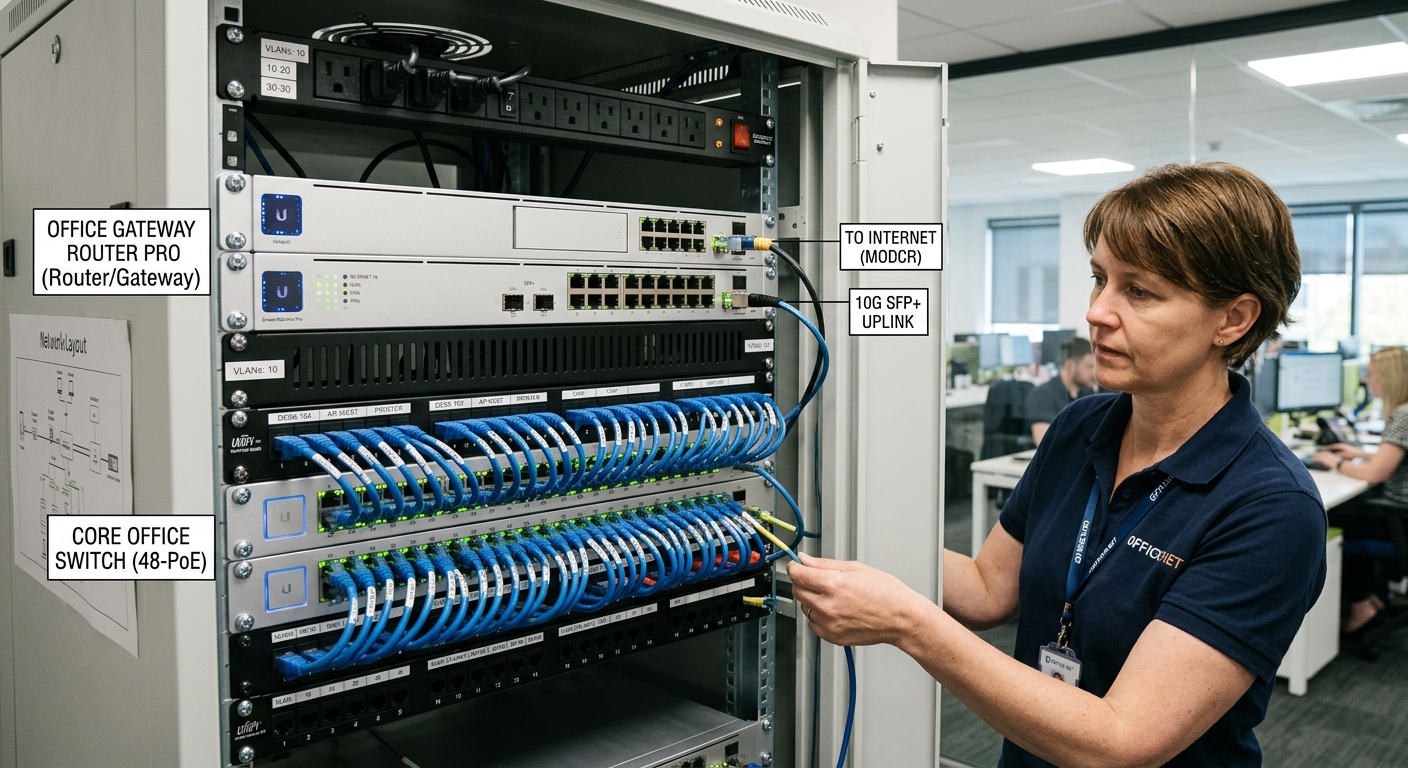
A network engineer configures an office router and network switch, showing how both devices support connectivity and internal network traffic management.
A few years ago I walked into a twelve person accounting office that had called me about “slow internet,” and that visit became the clearest network switch vs router lesson I have ever given. First, the owner pointed proudly at the closet. Inside sat three consumer routers, each plugged into the one before it, each handing out its own addresses, and each running its own little firewall. Of course, nobody had set it up that way on purpose. Instead, someone had run out of ports, bought another router because it was the box they recognized, and plugged it in. Then it happened again.
In fact, the internet connection was fine. The real problem was that the office had three separate networks stacked on top of each other, so the printer, the file server, and half the workstations could barely find one another. As a result, we pulled two of those routers and put in a single 24 port switch. Consequently, the “slow internet” disappeared that afternoon.
I tell that story because it captures the most common misunderstanding I run into in small and midsize offices. Generally, people see two boxes with blinking lights and a row of Ethernet ports and assume they are interchangeable. However, they are not. In short, the network switch vs router question comes down to one idea: a switch connects devices inside your network, whereas a router connects your network to other networks. Everything else in this article builds on that.
Below, I will walk through what each device actually does, how they work together in a real office, where the lines blur, and finally what I recommend when a business owner asks me what to buy.
Network Switch vs Router: The Short Answer
If you only remember one section, make it this one.
A switch lets the computers, printers, phones, access points, and servers in your office talk to each other. Specifically, it works with hardware addresses (MAC addresses) and lives at Layer 2 of the OSI model. In other words, it does not know or care about the internet.
A router, on the other hand, moves traffic between networks. In most offices, that means between your internal network and the internet provider. Moreover, it works with IP addresses at Layer 3, translates your private addresses into the one public address your provider gives you, and usually carries the firewall that decides what is allowed in and out.
For example, Cloudflare’s learning center puts the distinction plainly: a switch forwards data between devices in the same network, while a router forwards data between separate networks. Similarly, Cisco describes it from the other direction, saying a switch ties devices together into a network and a router ties those networks together into something larger.
Therefore, the network switch vs router debate is rarely about picking one. You almost always need both. The real question is whether you need them as separate boxes.
What a Network Switch Does That a Router Does Not
Think of a switch as the mail room inside your building. Unlike the shipping desk, it does not deal with the post office outside. Instead, it simply makes sure the envelope from accounting reaches the person in sales without being photocopied and handed to everyone on the floor.
How a Switch Learns Where Things Are
Every network card has a MAC address burned in at the factory. So when a device sends its first frame through a switch, the switch notes which port that frame came in on and records the pairing in a table. Engineers call it the MAC address table or CAM table.
Then, the next time traffic is headed for that device, the switch looks up the table and sends the frame out of one port only. If the destination is not in the table yet, however, the switch floods the frame out of every port, waits for a reply, and learns from it. Indeed, Cisco’s documentation on Ethernet switches describes exactly this lookup and forward cycle, which repeats switch by switch until the frame lands where it belongs.
This sounds simple, and it is. In fact, that simplicity is why switches are fast. After all, they are not making complicated decisions about the best route across the world. Rather, they make one quick decision about which port to use, millions of times a second, in dedicated hardware.
Why Switches Replaced Hubs
Older offices used hubs. Unfortunately, a hub repeats everything it receives to every port. As a result, two devices talking meant every device heard the conversation, and when two spoke at once, their signals collided and both had to retry. Consequently, adding more users slowed the whole segment down. Cisco also notes that the more devices you hang off a hub, the longer data takes to arrive, which is exactly the limitation switches were built to remove.
By contrast, a switch gives each port its own collision domain. Thus, two people can transfer files at the same time on different ports without stepping on each other. So if you still have a hub somewhere in your building (and I do occasionally find them in ceilings), retire it.
Unmanaged vs Managed Switches
This is where office buyers make their first real decision.
To begin with, an unmanaged switch is plug and play. You cable it up, and it works. However, there is no login, no configuration, and no visibility. Still, for a five person office with a printer and a NAS, that can be perfectly reasonable.
A managed switch, meanwhile, gives you a configuration interface. With it, you can:
- Create VLANs to separate guest devices, phones, cameras, and staff computers.
- See which port a misbehaving device is on and shut that port down.
- Prioritize voice traffic so calls stay clear when someone uploads a large file.
- Mirror a port for troubleshooting.
- Monitor errors and bandwidth per port.
Once an office crosses about fifteen users, adds VoIP phones, or puts security cameras on the network, I stop recommending unmanaged switches. Besides, the price gap has narrowed a lot. Above all, the first time you need to find a looped cable at 8:45 on a Monday morning, you will be glad you can see inside the box.
Power over Ethernet
Many office switches also supply power through the network cable. This is PoE, and it is the reason your desk phone, ceiling access points, and door cameras do not each need an outlet. Therefore, when you plan a switch purchase, add up the power draw of everything you intend to run from it. In practice, the total PoE budget on the spec sheet matters as much as the port count. For instance, I have seen more than one install where the cameras worked fine until the last access point was plugged in, and then something quietly lost power.
What a Router Does That a Network Switch Cannot
If the switch is the mail room, then the router is the shipping desk at the front of the building. In other words, it deals with everything that leaves or arrives from outside.
Routing Tables and Path Selection
To do this, a router keeps a routing table, which is a list of known networks and the next hop to reach each one. When a packet arrives, the router first reads the destination IP address in the header, then checks the table, and finally sends the packet toward the best match. Cloudflare, for example, compares it to a conductor checking a passenger’s ticket to decide which train to put them on.
In a small office, the routing table is short. Basically, there is your local network, and there is a default route that says “everything else goes to the internet provider.” However, in a company with several branches, a site to site VPN, or a separate network for the warehouse, the table grows and routing becomes genuinely important work. Out on the internet itself, providers exchange these routes with each other using BGP.
NAT: Sharing One Public Address
Your internet provider usually hands you one public IP address. Meanwhile, your office has dozens of devices, each with a private address such as 192.168.1.25. So the router performs Network Address Translation, rewriting outgoing traffic so it appears to come from the single public address, and keeping track of which reply belongs to which internal device. (IPv6 changes this picture; see IPv4 vs IPv6.) That is why Portnox lists NAT among the defining jobs of a router. A switch, by contrast, does not do this. For that reason alone, a switch cannot replace the router at the edge of your network.
DHCP, DNS, and the Firewall
In most small offices, the router also does the following:
- Runs DHCP, handing out IP addresses to devices as they join.
- Forwards DNS requests so names like a vendor’s portal resolve to addresses.
- Hosts the firewall that blocks unsolicited inbound traffic.
- Terminates VPN connections for staff working from home.
Strictly speaking, none of those jobs is “routing.” Nevertheless, they live on the router because it sits at the boundary. Likewise, CDW points out that switches lack built in network protection, while routers commonly include a configurable hardware firewall.
In larger offices, I often split these roles onto dedicated hardware: a firewall appliance at the edge, a separate server for DHCP and DNS, and routing handled by the firewall or a core switch. For a ten or twenty person business, though, keeping them together on one good business router is fine.
Router Is Not Modem
One quick clarification, because I hear the words used interchangeably on almost every site visit. The modem (or ONT, for fiber) converts the provider’s signal into Ethernet. The router, in turn, decides what to do with the traffic. Admittedly, your provider may ship a single box that does both, and many also bundle WiFi and four switch ports. Cloudflare’s explainer on routers covers this distinction well: with a router but no modem, you have a working local network and no internet, whereas with a modem but no router, you have internet for a single device.
How a Network Switch and Router Work Together in an Office
To make this concrete, here is how I lay out a typical twenty five person office. (Our small business network setup guide walks through the full build.)
The Physical Layout
First, the fiber or cable line comes in to the provider’s modem. Next, one cable goes from the modem to the router or firewall. Then, from the router’s LAN port, one cable goes to the core switch, usually a 24 or 48 port managed PoE model in the network closet.
After that, everything else plugs into that switch: workstations, printers, the file server, desk phones, and the ceiling access points that provide WiFi. Additionally, if the office has a second floor or a far wing, a second switch sits there, connected back to the core switch with a single uplink. If the distance is long, that uplink is often fiber.
Following Traffic Through the Network Switch and Router
For example, when Maria in accounting prints a report, the traffic goes from her PC to the switch and then to the printer. In this case, the router never sees it. However, when she opens the bank’s website, the traffic goes from her PC to the switch, up to the router, through NAT and the firewall, out to the internet, and finally back the same way.
Cisco’s small business guidance describes exactly this pattern: connect a switch to one of the router’s ports to extend the number of wired devices in a small office. Furthermore, Netmaker goes a step further, describing offices where several switches each handle their own segment while a core switch connects them all before handing off to the router.
Ultimately, the design point that matters is this: the router handles traffic between networks, while the switches handle traffic within the network. When you mix those roles up, as in my accounting office story, you create problems that look like “slow internet” but are really devices that cannot find each other.
Network Switch vs Router: Where the Line Gets Blurry
That said, real hardware does not always respect textbook categories. In particular, three situations confuse people most often.
The All in One Office Router
That box from your provider, or the one you bought at an electronics store, is almost always a router, a small four port switch, and a wireless access point in one case. So when you plug your laptop into port 2 and your printer into port 3, the switch chip inside is doing the work, not the router.
This is fine for a very small office. On the other hand, it becomes a limitation when you need more ports, PoE, VLANs, or better WiFi coverage. At that point, the answer is not to buy a bigger router. Rather, the answer is to add a proper switch and, usually, separate access points.
Layer 3 Network Switch vs Router
Some managed switches can also route between VLANs on your internal network. These are called Layer 3 switches. For instance, in a mid sized office with separate VLANs for staff, phones, and guests, a Layer 3 switch can route between them at full wire speed instead of sending every packet up to the router and back.
What a Layer 3 switch usually does not do well, however, is act as your internet edge. Typically, it lacks NAT, advanced firewall features, and the WAN interfaces you need to talk to an internet provider. VCELINK makes the point that the practical difference between a Layer 3 switch and a router lies largely in the hardware and what it is built for. Hence my rule is simple: routing inside the building can live on a Layer 3 switch, but routing to the outside world belongs on a router or firewall.
Using an Old Router as a Network Switch
Can you turn a spare router into a switch? Yes, mostly. To do it, disable its DHCP server, give it a static address on your existing network, and use only its LAN ports. Portnox walks through this, and it also makes the reverse point: a plain switch cannot become a router because it has no ability to move traffic between different networks.
To be honest, though, I only do this as a temporary fix. After all, consumer routers repurposed as switches have limited ports, no PoE, and firmware that was not designed for that role. In contrast, a basic unmanaged switch costs less than most people expect and removes a whole class of strange problems, including the double NAT mess from my opening story.
Network Switch vs Router: Side by Side
Here is how I explain the network switch vs router comparison on a whiteboard.
| Network Switch | Router | |
|---|---|---|
| Main job | Connects devices within one network | Connects separate networks together |
| OSI layer | Layer 2 (Layer 3 on some models) | Layer 3 |
| Address used | MAC address | IP address |
| Table it keeps | MAC address table | Routing table |
| Internet access | Cannot provide it alone | Required for it |
| NAT | No | Yes |
| Firewall | Usually none | Usually built in |
| DHCP | Rarely | Commonly |
| Typical ports in an office | 8 to 48, often with PoE | 1 WAN, a few LAN |
| Where it sits | Network closet, across the floor | At the edge, next to the modem |
Even so, the table leaves out the most practical difference of all. A switch failure usually takes down one group of desks. A router failure, by comparison, takes down the whole office’s connection to the outside world. Naturally, that changes how you budget for each.
Network Switch vs Router Mistakes I See in Office Networks
After enough site visits, patterns emerge. Interestingly, most of them trace back to confusion over network switch vs router roles. These are the ones I would fix first.
Daisy Chained Routers
I already covered this one, but it is still the most common. So if you have more than one device handing out addresses, find out why.
Cheap Switches Hidden Under Desks
Someone needed two more ports, so a small switch appeared under a desk. Then another appeared under the next desk, plugged into the first. Unfortunately, these are invisible on your documentation, cause loops when someone plugs both ends of a cable in, and are the first thing to fail when a foot kicks a power cord. Instead, run proper cabling back to the closet.
Undersized PoE Budgets
For example, a switch with 24 PoE ports and a 190 watt budget cannot power 24 cameras at full draw. Therefore, do the arithmetic before you buy.
Flat Networks With No Segmentation
In a flat network, the guest WiFi, the smart TV in the break room, the payroll workstation, and the security cameras can all see each other. Fortunately, VLANs on a managed switch, combined with the router or firewall controlling traffic between them, fix this. Not surprisingly, Cisco highlights VLAN segmentation as one of the primary jobs of a business switch.
Running the Business on the Provider’s Router
Provider equipment is built for homes. As a result, it often lacks the logging, VPN, and firewall control a business needs, and you usually cannot update it on your own schedule. Consequently, I put the provider’s box in bridge mode and place a business grade router or firewall behind it whenever the provider allows.
No Spare Equipment
If your only router dies on a Friday, how long until you are back online? For a small office, then, keeping a configured spare, or at least a backup copy of the configuration, is cheap insurance.
Network Switch vs Router: How to Choose What Your Office Needs
When a client asks me what to buy, I start with five questions.
Question 1: How Many Wired Devices?
First, count workstations, printers, phones, access points, cameras, and anything else with a network jack. Then add 30 percent for growth over the next two years. That number decides your switch port count.
Question 2: What Needs Power From the Network?
Phones, access points, and cameras usually do. So total their wattage and pick a switch with headroom in its PoE budget.
Question 3: Do You Need to Separate Traffic?
If you have guests, VoIP, cameras, or regulated data such as payment or patient information, then the answer is yes. In that case, you need a managed switch with VLAN support and a router or firewall that can enforce rules between those VLANs.
Question 4: Who Works Remotely?
If staff connect from home, or if you link two offices, your router also needs solid VPN support.
Question 5: Who Will Manage It?
A cloud managed switch and router pair can be ideal for an office without IT staff, because a provider like ours can monitor and update it remotely (here’s what managed IT services typically cost). Alternatively, if you have an in house IT person who likes a command line, traditional managed gear works fine.
Three Typical Network Switch and Router Setups
Based on those answers, offices usually fall into one of three setups.
- Very small office (under 10 people, no VoIP, no cameras): A good quality business router with built in switch ports and WiFi, plus a small unmanaged switch if you need a few more ports.
- Small office (10 to 40 people): A business router or firewall at the edge, one managed PoE switch in the closet, and separate ceiling access points for WiFi. In addition, set up guest and staff VLANs from day one.
- Growing office (40+ people, multiple floors or locations): A dedicated firewall, a Layer 3 core switch handling internal routing between VLANs, access switches on each floor uplinked to the core, and site to site VPN or SD WAN for branches.
Overall, the pattern is consistent. As an office grows, the router’s job stays focused on the edge, while switches multiply and take on more of the internal work.
A Note on Planning for Growth
The most expensive network is the one you rebuild twice. For this reason, when I design an office, I would rather install a 48 port switch with half the ports empty than a 24 port switch that is full on move in day. After all, ports are cheap, while ripping out and recabling a closet is not.
Likewise, the same logic applies to routers. Specifically, check that the router’s throughput with the firewall and VPN turned on, not just raw routing speed, comfortably exceeds your internet plan. Spec sheets, after all, love to quote the fast number with every security feature switched off. So if you upgrade from a 200 megabit line to a gigabit line next year, you want the router to keep up. In other words, plan the network switch vs router budget around where the office will be, not where it is today.
Finally, write it down. A one page diagram showing the modem, router, each switch, which closet it lives in, and which VLANs exist will save your help desk hours the next time something breaks or someone new takes over IT.
Bringing It Back to the Closet
When people ask me about the network switch vs router decision, I find it helps to stop thinking of them as competitors. In reality, they are two halves of the same job. The switch builds your office network, port by port and device by device. Meanwhile, the router is the doorway between that network and everything outside it, including the internet, your cloud apps, and your other locations.
In summary, get the router right, and your office has a reliable, secure connection to the outside world. Likewise, get the switching right, and everything inside the office talks quickly and stays organized. Mix them up, however, like that accounting office with three routers in a stack, and you spend your days chasing problems that were never really about the internet at all.
So if you are not sure which side of the line your current problem sits on, start in the closet. Count the boxes, trace the cables, and see which device is handing out addresses. Often, that fifteen minute look tells you more than any speed test.
Network Switch vs Router FAQs
Do I need both a network switch and a router for my office?
Almost always, yes, although they may live in the same box. Essentially, you need routing to reach the internet and switching to connect more than a handful of devices. Most small office routers include a few switch ports, so you only add a separate switch once you outgrow them. See Cloudflare: What is a network switch?
Can a network switch connect to the internet without a router?
No. A switch has no NAT, no routing toward your provider, and no firewall. Consequently, plugging the modem straight into a switch will at best give one device a connection, and it will also leave that device exposed. See Portnox: Comparing switches and routers.
Will adding a switch slow down my internet?
No, a properly installed switch does not slow your internet, since it forwards frames at wire speed. Instead, slowdowns usually come from a bottleneck elsewhere, such as an overloaded router, a weak WiFi signal, or a duplicate DHCP server. See Cisco: How does a switch work?
What is the difference between a managed and unmanaged switch?
An unmanaged switch works out of the box with no settings. A managed switch, however, lets you configure VLANs, traffic priority, port security, and monitoring. Therefore, offices with VoIP, cameras, or guest WiFi generally need managed switches. See Cisco: Types of network switches.
Is a Layer 3 network switch the same as a router?
Not quite. A Layer 3 switch can route between internal VLANs very quickly. However, it usually lacks NAT, a full firewall, and WAN connections, so it does not replace the router at your internet edge. See VCELINK: Layer 3 switching explained.
Is my internet provider’s box a modem or a router?
Often it is both, plus a WiFi access point and a small switch. In that case, the modem part talks to the provider’s line, while the router part handles NAT, DHCP, and the firewall for your local network. See Cloudflare: What is a router?
How do I connect a switch to my router?
First, run an Ethernet cable from one of the router’s LAN ports to any port on the switch. Then connect your devices to the switch. As a result, the router keeps handing out addresses, and the switch simply extends the number of available ports. See Cisco: Small office networking basics.
References
- Cisco. What is a switch vs a router? cisco.com
- Cisco. How does a switch work? cisco.com
- Cisco. What is an Ethernet switch? cisco.com
- Cisco. What are the different types of network switches? cisco.com
- Cloudflare. What is a network switch? cloudflare.com
- Cloudflare. What is a router? cloudflare.com
- Cloudflare. What is routing? cloudflare.com
- CDW. Switch vs. Router vs. Hub: How to Choose. cdw.com
- Portnox. What is the Difference Between a Switch and a Router? portnox.com
- Netmaker. What is the Difference Between a Switch and a Router? netmaker.io
- VCELINK. Understanding switches and routers in modern networks. vcelink.com
About the Author