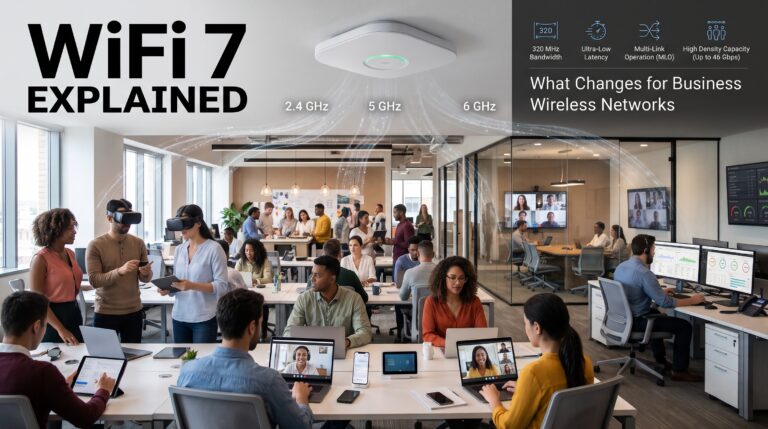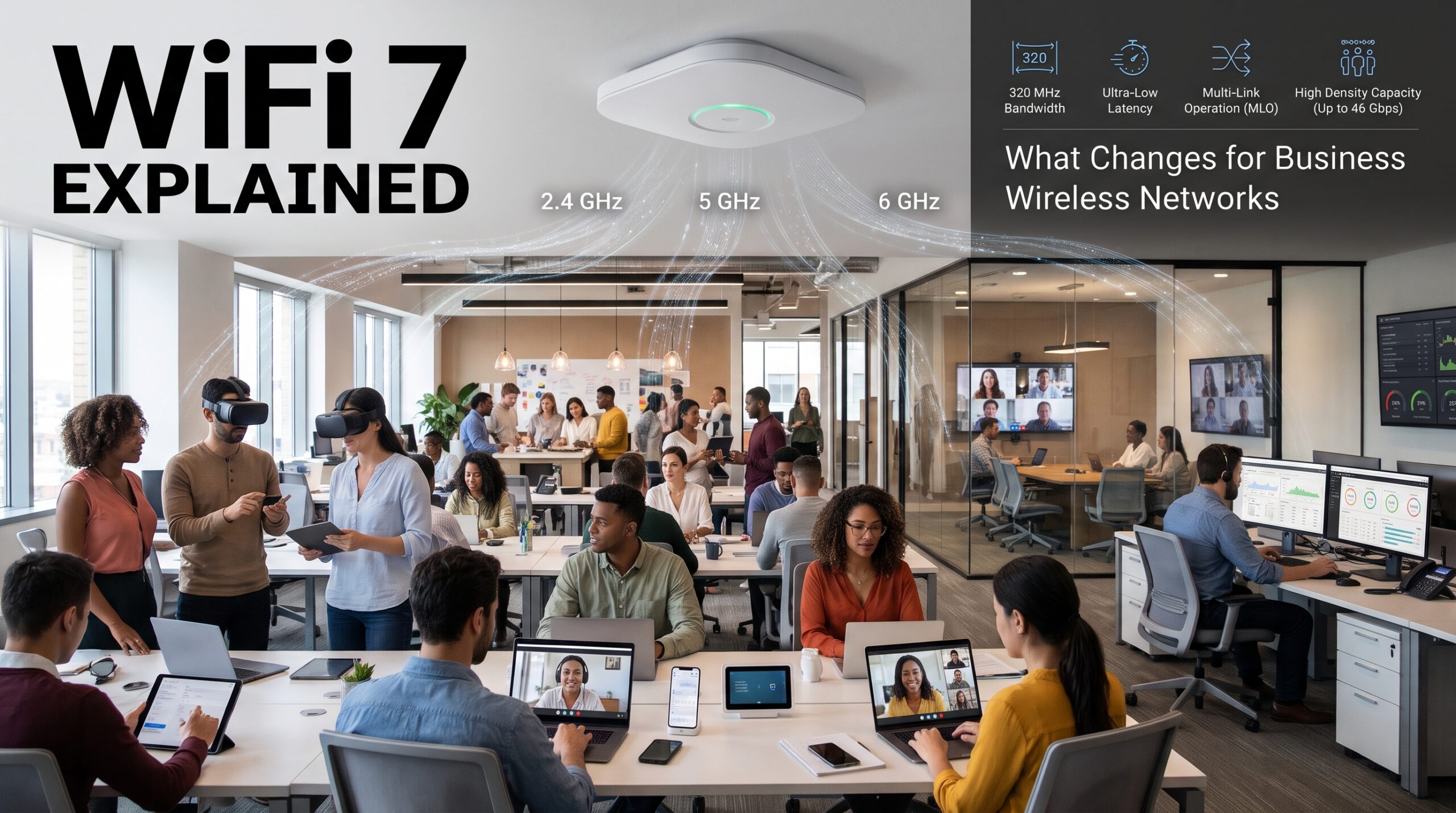
WiFi 7 transforms business wireless networks with faster speeds, lower latency, improved network capacity, and reliable connectivity.
I have spent most of my career walking ceilings with a survey kit, arguing with facilities teams about where an access point can go, and explaining to finance why “the WiFi is slow” is almost never fixed by buying faster WiFi. So when vendors started putting WiFi 7 on every slide, my first reaction was the same one I had with WiFi 6: show me what changes on a real office floor, with real laptops, real walls, and a real budget.
After designing and tuning several WiFi 7 networks for professional services firms, offices, and mixed use buildings, I can tell you that the honest answer is more interesting than the marketing. WiFi 7 does change business wireless networks, but the big wins are not the headline speeds. They come from how clients connect, how spectrum is shared, and how the wired network behind the access points has to grow up.
This article is the explanation I give clients before they sign a purchase order.
What WiFi 7 Actually Is
WiFi 7 is the marketing name for IEEE 802.11be, also called Extremely High Throughput, or EHT. The WiFi Alliance started certifying products in January 2024 under the Wi Fi CERTIFIED 7 program. According to the Alliance, the advanced features work together to deliver higher data throughputs and support deterministic latency for sophisticated use cases that demand exceptional reliability.
The certification feature list is short and worth knowing by name:
- 320 MHz channels in the 6 GHz band
- Multi Link Operation, or MLO
- 4K QAM modulation
- 512 Compressed Block Ack
- Preamble puncturing, sometimes listed as Multi RU and puncturing
If you only remember one thing from that list, remember MLO. It is the feature that most changes how I design for business. The others matter, but some of them matter far less in an office than the spec sheet suggests.
It also helps to understand that WiFi 7 builds on WiFi 6 and WiFi 6E rather than replacing them. OFDMA, target wake time, BSS coloring, and the 6 GHz band itself all came earlier. WiFi 7 takes that foundation and pushes it harder. If your current network never made good use of WiFi 6 features, WiFi 7 will not magically fix the design problems underneath.
Multi Link Operation: The WiFi 7 Change That Actually Matters
For twenty years, a WiFi client connected to one radio on one band at a time. If you had a dual band access point, the client picked 2.4 GHz or 5 GHz, and we spent a lot of effort on band steering to nudge it toward the better choice. When that band got busy or noisy, the client either suffered or went through a reassociation that interrupted traffic.
MLO breaks that model. As Zebra’s MLO documentation explains, Multi Link Operation enables WiFi 7 devices to simultaneously connect to and transmit data across multiple frequency bands or channels, such as 2.4 GHz, 5 GHz, and 6 GHz. In the standard’s language, a device that can do this is a Multi Link Device. Cisco Meraki’s technical guide puts it simply: the access points are referred to as AP MLD and clients are referred to as Non AP MLD.
In practice, the client and the access point form one logical connection that rides on two or three physical links. Traffic can move to the cleaner link on a per frame basis instead of waiting for the client to give up and roam.
The Four Flavors of MLO
There are several flavors of MLO, and the difference between them is where most of the confusion comes from:
- MLSR (Multi Link Single Radio): one radio that switches between links. Useful, but limited.
- eMLSR (Enhanced Multi Link Single Radio): the client listens on more than one link and jumps to whichever one is clear when it has something to send. This is what most laptops and phones actually do today.
- STR (Simultaneous Transmit and Receive): separate radios working on separate links at the same time. This gives true aggregation but demands more expensive client hardware.
- NSTR (Non Simultaneous Transmit and Receive): multiple radios that coordinate rather than operate fully independently, a middle ground on cost.
Why eMLSR Is Enough for Most Offices
Here is my field opinion. Most businesses will live in eMLSR for the next several years, and that is fine. The value of eMLSR is not raw speed. It is consistency. When I look at a busy floor, the problem is rarely average throughput. It is the bad two seconds in the middle of a client call when a microwave fires, a neighbor’s network bursts, or forty people return from lunch at once. eMLSR lets a client dodge that moment.
The numbers back this up. Field trials by the Wireless Broadband Alliance, as summarized by Purple, showed that eMLSR delivers up to a 66 percent reduction in uplink latency under heavy interference. Uplink is the direction that hurts most in a modern office, because video calls, screen sharing, and cloud file sync all push data up from the client.
The SSID Lesson Nobody Tells You
One design habit has to die if you want MLO to work. Many businesses still run separate network names per band, something like “Office5G” and “Office24.” Purple’s MLO guide is blunt about it: if you split networks into separate identifiers with WiFi 7, you completely break MLO. A client cannot build one logical connection across bands if each band advertises a different network. Unify your SSIDs before you do anything else.
WiFi 7 320 MHz Channels: Great on Paper, Careful in the Office
The headline number for WiFi 7 is the 320 MHz channel. The WiFi Alliance notes in its Wi Fi CERTIFIED 7 highlights that 320 MHz superwide channels that are only available in 6 GHz provide twice the throughput of Wi Fi CERTIFIED 6, enabling multigigabit device speeds. Vendors combine that with everything else to quote theoretical maximums, such as Cambium’s figure of up to 46 Gbps with wider 320 MHz channels and 4096 QAM modulation.
That number will never show up on a business floor, and nobody serious expects it to. What matters is how many channels you get to reuse.
In the United States, the 6 GHz band gives you 1200 MHz of spectrum. Divide that into 320 MHz channels and you get only three that do not overlap. Divide it into 80 MHz channels and you get fourteen. In a building with dozens of access points, three channels means every AP is competing with its neighbors for airtime. Fourteen channels means you can actually plan reuse.
Extreme Networks made the same point in their WiFi 7 explainer, noting that this capability does not scale well in the enterprise and calling it primarily a consumer benefit. I agree for the general office. My standard design for a dense floor is 40 MHz or 80 MHz in 6 GHz, 20 MHz or 40 MHz in 5 GHz, and 20 MHz in 2.4 GHz.
There are exceptions. A small studio with a handful of high end workstations moving large media files, a single conference room with its own isolated AP, a lab, or a point to point wireless link can all justify wider channels. But that is a deliberate choice for a specific space, not a default.
4K QAM in WiFi 7 and Why Distance Decides Everything
Modulation is how much data a radio packs into each symbol. WiFi 6 topped out at 1024 QAM, which carries 10 bits per symbol. WiFi 7 adds 4K QAM, carrying 12 bits. The WiFi Alliance rates it as achieving 20% higher transmission rates than Wi Fi 6’s 1024 QAM for greater efficiency.
The catch is signal quality. 4K QAM only works when the client is close to the access point with a very clean signal. In my surveys, that means roughly the same room as the AP, with line of sight and very little noise. Step into the next office or behind a glass partition with a metal frame, and the client falls back to a lower modulation level within seconds.
So treat 4K QAM as a bonus, not a design target. It helps the person sitting under the AP finish a transfer faster and get off the air sooner, which frees airtime for everyone else. That indirect benefit is real, but nobody should be designing their AP placement around it.
Puncturing: A Small Feature With Real Relief
This is my favorite underrated WiFi 7 feature. In older generations, if part of a wide channel had interference, the whole channel was degraded. A single narrow source of noise inside an 80 MHz channel could force the AP to drop back to a smaller width.
Preamble puncturing lets the AP carve out the noisy slice and keep using the rest. Intel explains that with Multi RU Puncturing, WiFi 7 devices will be able to use other parts of the same high speed channel not in use to enable very large channels.
In a dense business district where you are sharing air with the floors above and below, plus every tenant’s guest network, this is practical relief. It means fewer channel changes and less wasted spectrum.
The 6 GHz Band Is the Real WiFi 7 Upgrade
If you are moving from WiFi 5 or a 5 GHz only WiFi 6 network, the biggest jump is not WiFi 7 itself. It is 6 GHz. Network World’s analysis points out that with up to 1,200 MHz of additional spectrum available in the U.S., 6 GHz WiFi effectively triples wireless capacity compared with legacy bands.
The 6 GHz band is also clean in a way 2.4 GHz and 5 GHz will never be again. Legacy devices cannot join it, so you do not have old printers, barcode scanners, and ancient laptops dragging down airtime.
There is a tradeoff that bites people. 6 GHz has shorter range and loses more energy through walls than 5 GHz. If you swap your old APs one for one in the same ceiling spots, you will often find 6 GHz coverage gaps at the edges of each cell. A predictive design followed by a validation survey is not optional with WiFi 7. It is the job.
Low Power Indoor Versus Standard Power
Most indoor 6 GHz deployments today run in Low Power Indoor mode, which caps transmit power. Standard Power allows higher power and outdoor use, but it requires Automated Frequency Coordination, or AFC, to protect existing licensed users such as microwave links.
This moved from theory to practice recently. Computer Weekly reported that Federated Wireless and Cisco have successfully validated and deployed Standard Power WiFi 6E and WiFi 7 in enterprise environments across the US and Canada. For warehouses, campuses, courtyards, and large open venues, Standard Power changes the coverage math significantly. For a normal office floor, Low Power Indoor is usually still the right answer, because you want smaller cells and more reuse anyway.
WiFi 7 Security Gets Stricter, and Old Clients Feel It
WiFi 7 raises the security baseline, and that has operational consequences. HPE Aruba’s deployment guidance notes that WiFi 7 requires clients to support GCMP 256 unicast ciphers and Beacon Protection. These changes affect all bands instead of just the 6 GHz band like with WiFi 6E.
In plain terms, to get MLO across bands you need WPA3 across those bands. If your organization still runs WPA2 on a corporate network because of a few older devices, WiFi 7 forces the conversation. My usual approach is to run a modern WPA3 network for current laptops and phones, and keep a separate network for legacy devices that cannot be upgraded yet, tightly segmented on its own VLAN. That legacy network gets a retirement date, written down and agreed by leadership.
Before you buy anything, audit your authentication stack. Check that your RADIUS servers, identity provider, certificate setup, and onboarding process all handle WPA3 Enterprise cleanly. This is the step where I have seen rollouts stall, not the radio side.
The Wired Side of WiFi 7 Nobody Budgets For
I tell every client the same thing: a WiFi 7 access point is a network switch problem wearing a radio costume.
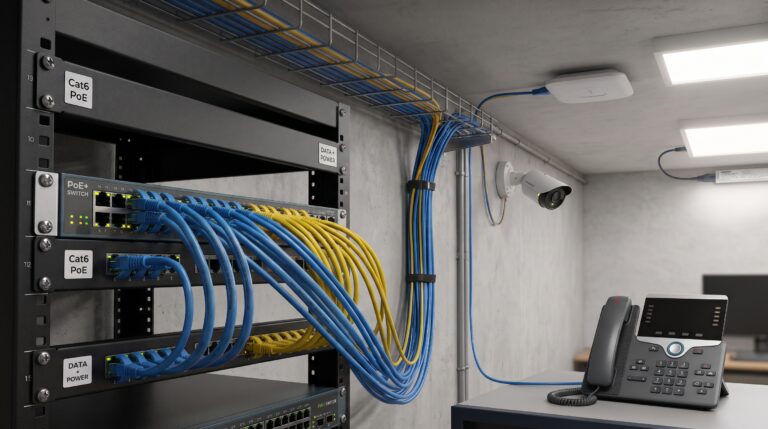
Power. Tri radio WiFi 7 APs draw more Power over Ethernet than the APs they replace. HPE Aruba’s planning guide states that tri radio APs require more power than dual radio APs, 802.3at/CL4 PoE or better required. 802.3bt/CL6 PoE is recommended for new deployments. If your access switches only offer 802.3at budgets, many high end APs will either disable radios, reduce spatial streams, or shut off USB and IoT features to stay inside the power limit. Check the power tables for the exact model before you commit, and if your closets still run consumer grade gear, read up on managed vs unmanaged switches before you price the refresh.
Uplinks. A single 1 Gbps uplink can bottleneck even a midrange WiFi 7 AP. You want 2.5 GbE at minimum, and 5 GbE or 10 GbE for high density areas. The RUCKUS team puts it well: an upgrade requires switching infrastructure that supports higher PoE budgets, multi gig speeds such as 2.5 GbE or 5 GbE, and sufficient uplink capacity to avoid bottlenecks, and the same applies to any office.
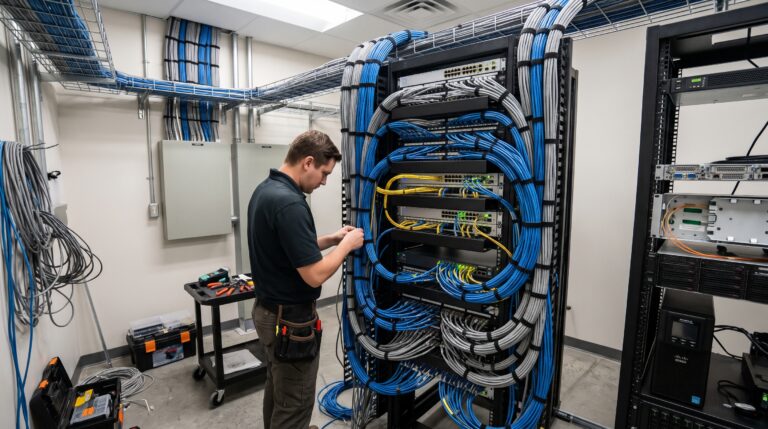
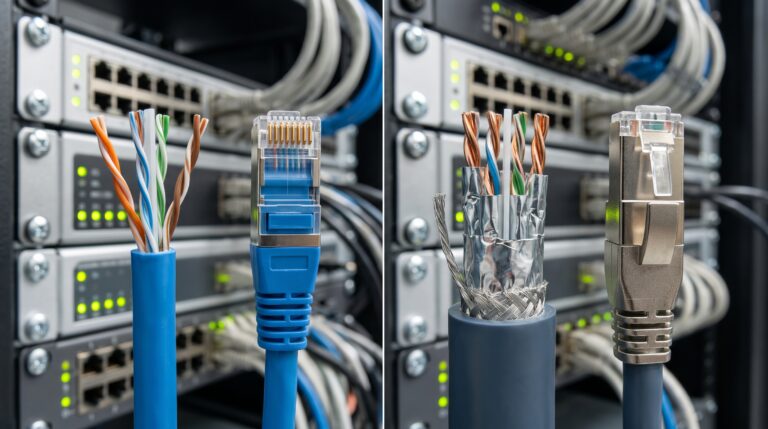
Cabling. Good Category 6 or 6A cabling handles multigigabit speeds over typical runs (our Cat6 vs Cat6a guide covers the distance limits). Older Category 5e may negotiate 2.5 GbE over shorter distances, but you need to test it rather than assume it. I have seen projects where the AP budget was approved and the switch and structured cabling refresh was discovered three weeks before go live. Budget them together.
Core and internet. If every floor can now push multiple gigabits, your distribution layer, firewall, and internet circuit need to keep up. Otherwise you have simply moved the bottleneck. Review your network topology end to end, not just the edge.
WiFi 7 Clients Decide Everything
A WiFi 7 access point serving WiFi 6 laptops behaves like a very good WiFi 6 access point. That is not a waste, since you are buying a platform that will last five to seven years, but it sets expectations correctly.
Client support is improving quickly, yet it is uneven. Many current flagship phones and business laptops support WiFi 7, but not all of them support every feature. A few skip 320 MHz entirely. Others support eMLSR but not STR, and certain models ship with MLO disabled in early driver versions. On top of that, corporate laptop fleets often run a mix of chipsets from different refresh cycles.
My standard practice is to build a client matrix before design. List every major device model on the network, its WiFi chipset, its driver version, and which WiFi 7 features it supports. If you already run solid IT asset management, most of that data is a report away. That matrix tells you what you will really gain on day one, and it tells IT which laptop refresh matters most.
Also test roaming with your actual collaboration tools. MLO changes how clients behave, and I have seen voice and video apps react differently on different drivers. A pilot floor with real users for two to four weeks will surface those issues before a full rollout does.
Where the WiFi 7 Market Is Now
This is no longer early adopter territory. IDC reported that WiFi 7’s move to 44.5% of enterprise dependent AP revenues in a single year is one of the faster standard transitions it has tracked. Its second quarter 2026 report went further, noting that the market has moved past its early adoption phase into a full replacement cycle.
IDC also points out that buyers are not all moving at the same pace, and that large, distributed organizations are managing multi standard environments where WiFi 6, WiFi 6E, and WiFi 7 coexist across campuses and branch sites. That matches what I see. Few organizations rip and replace everything. Most refresh headquarters and high density areas first, then roll through branches as older hardware reaches end of support, often alongside a review of how those branches connect back, as covered in SD-WAN vs MPLS.
Performance in real buildings is also encouraging. In WBA trials reported by RCR Wireless, at 6 GHz using 160 MHz channels, WiFi 7 reached 1.9 Gbps downlink and 2.1 Gbps uplink speeds at 5 feet. Importantly, it sustained over 1 Gbps throughput up to 40 feet, a range typically seen in dense enterprise deployments. Note the channel width there. Those results came from 160 MHz, not 320 MHz.
How I Plan a WiFi 7 Rollout
Every building is different, but the order of work stays the same. Here is the sequence I follow:
- Define the requirement in business terms. How many people per floor, which applications matter most, where video calls happen, which rooms host clients, and what failure costs the business. Speed is not a requirement. “Twelve concurrent video calls in the boardroom without dropouts” is.
- Build the client matrix. Know what devices you are serving and what they can actually do.
- Design predictively for 6 GHz first. Model the floor with real wall materials. Plan AP density for 6 GHz coverage at your required signal level, then confirm 5 GHz and 2.4 GHz follow.
- Pick sensible channel widths. Start with 40 MHz or 80 MHz in 6 GHz for dense spaces. Reserve wider channels for specific rooms with a specific reason.
- Unify SSIDs and move to WPA3. Reduce the total number of networks, separate legacy devices, and confirm the authentication stack works end to end.
- Fix the wired layer. Confirm PoE budgets per switch, multigigabit ports, cabling quality, and uplink capacity.
- Pilot with real users. Pick a representative floor, run it for a few weeks, and measure roaming, call quality, and help desk tickets, not just speed tests.
- Validate after install. Do a post installation survey. APs get moved by facilities, ceilings get new fixtures, and designs drift. Measure what was built, not what was drawn.
- Operate with telemetry. Modern WiFi 7 platforms provide strong client analytics. Pair them with your existing network monitoring tools to spot problem devices, drivers, and areas before users report them.
When You Should Wait on WiFi 7
I do not recommend WiFi 7 for everyone today. If your current WiFi 6 or 6E network is less than three years old, performs well, and your switches are not ready for higher power and multigigabit uplinks, it is usually smarter to plan WiFi 7 into your next refresh cycle and spend this year’s budget on cabling, switching, and security groundwork.
On the other hand, if you are still running WiFi 5, your APs are approaching end of support, you are moving into a new office, or you have a clear pain point with density and call quality, WiFi 7 is the right platform to buy now. Buying WiFi 6 hardware in 2026 for a seven year lifecycle makes little sense when WiFi 7 pricing has come down across vendor tiers.
The Bottom Line
WiFi 7 is not about one person getting a giant speed test result. It is about a busy floor behaving well at the worst moment of the day. Multi Link Operation gives clients a way to dodge congestion. The 6 GHz band gives you clean spectrum. Puncturing saves wide channels from small interference. Stricter security raises the floor for everyone.
But none of that works without good design, a modern wired backbone, and clients that can use the features. Get those right, and WiFi 7 is the most meaningful change to business wireless since the move to 5 GHz. Get them wrong, and you will have very expensive access points running like the old ones.
Frequently Asked Questions About WiFi 7
What is the difference between WiFi 7 and WiFi 6E?
Both use the 6 GHz band, but WiFi 7 adds Multi Link Operation, 320 MHz channels, 4K QAM, and puncturing. In business networks, MLO is the most important difference because it improves reliability and latency, not just peak speed. The WiFi Alliance WiFi 7 overview summarizes the feature set.
Do I need new switches for WiFi 7 access points?
Often, yes. Many WiFi 7 APs need 802.3bt power for full functionality and benefit from 2.5 GbE or faster uplinks. If you are unsure which device in your stack does what, start with network switch vs router, then review the HPE Aruba WiFi 7 planning and deployment guide and the power table for your chosen AP model before you order.
Will my existing laptops and phones work on a WiFi 7 network?
Yes. WiFi 7 is backward compatible, so older devices connect on 2.4 GHz or 5 GHz as before. They simply will not use WiFi 7 features. Devices that only support WPA2 may need a separate legacy network, as explained in the Cisco Meraki WiFi 7 technical guide.
Should a business use 320 MHz channels with WiFi 7?
Rarely as a default. In dense offices, narrower channels give better reuse and more consistent performance. Wider channels make sense for isolated rooms or specialized workloads. Extreme Networks explains the tradeoff in their WiFi 7 guide.
What is Automated Frequency Coordination and do I need it?
AFC is a database service that allows 6 GHz Standard Power operation while protecting licensed users. It matters most for outdoor areas, warehouses, and large venues. Most office floors run fine on Low Power Indoor. See Computer Weekly’s coverage of Standard Power validation.
Is WiFi 7 worth it for a small or midsize business?
If your APs are aging, you are moving offices, or you struggle with video call quality in busy areas, yes. If your WiFi 6 network is recent and performing well, plan WiFi 7 into your next refresh. Very small offices may be better served by mesh WiFi for business as part of a broader small business network setup, and if you outsource the work, factor it into your managed IT services cost. IDC’s market analysis shows how quickly businesses are adopting it.
References
- WiFi Alliance: Introducing Wi Fi CERTIFIED 7
- WiFi Alliance: Wi Fi CERTIFIED 7 Highlights
- WiFi Alliance: Driving the Next Level of WiFi Performance
- Cisco Meraki: WiFi 7 (802.11be) Technical Guide
- HPE Aruba Networking: WiFi 7 Planning and Deployment
- Zebra Technologies: Multi Link Operation in Enterprise WLAN
- Extreme Networks: 7 Things to Know About WiFi 7
- Intel: What Is WiFi 7?
- Cambium Networks: Enterprise WiFi 7 Solutions
- Purple: WiFi 7 MLO Explained for Enterprise Networks
- RCR Wireless: WBA WiFi 7 Enterprise Trial Results
- Network World: Why 6 GHz WiFi Will Make or Break the Modern Enterprise
- Computer Weekly: Federated Wireless and Cisco Validate Standard Power
- IDC: WiFi 7 Captures 44% of Enterprise WLAN AP Revenue in 1Q26
- IDC: Enterprise WLAN Market Grows 23.2% in 2Q26
- RUCKUS Networks: How RUCKUS ICX Switches Add Value to WiFi 7 Networks
- TechRadar Pro: How WiFi 7 Will Boost Business
About the Author