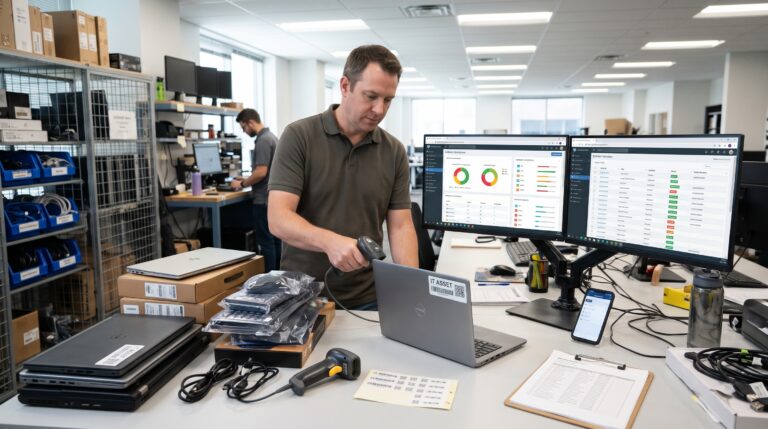
IT teams use network monitoring tools to track performance, identify issues, and reduce downtime.
The ticket that bothers me most is not “the core switch is down.” That one is easy. Everybody knows it, the alarms are loud, and the fix has a clear owner. The ticket that keeps me up is the one that says, “The network feels slow today.” No device name. No time stamp. Just a feeling from a user who has already rebooted their laptop twice and is now annoyed with all of us. Good network monitoring tools exist to answer that ticket before anyone ever writes it.
I have spent most of my career in network operations, first as the person answering those tickets and later as the person deciding how our monitoring should catch problems before anyone files them. What I have learned is that network monitoring tools rarely fail because they lack features. They fail because teams point them at the wrong things, or at everything, and then drown.
This article is my attempt to explain what IT teams should actually track, why each metric earns its place, and how to build alerting that people trust instead of mute. It is written for the admin who inherited a monitoring system full of red icons nobody looks at, and for the manager trying to understand why the team keeps buying tools and still hears about outages from users first.
Why “Monitor Everything” Breaks Network Monitoring Tools
Every monitoring platform I have used ships with templates that collect hundreds of values per device. It is tempting to switch them all on. Storage is cheap, and more data feels safer.
It is not safer. When a dashboard shows 400 graphs, nobody reads any of them. When an alert fires for every interface that crosses 70 percent utilization for one polling cycle, the on call engineer learns within a week that alerts are noise. Then the real one arrives at 2 a.m. and gets acknowledged without being read.
The data supports what most of us feel. In one industry survey covered by Network World, just 6% of respondents said that between 90% and 100% of their network performance issues and outages are predicted by their network monitoring tools. That is not a tooling gap. That is a design gap.
So before talking about metrics, I want to talk about intent.
Set Up Network Monitoring Tools Around the Right Questions
Google’s Site Reliability Engineering book has a chapter on monitoring that I recommend to every junior engineer I mentor, even though it was written with services in mind rather than routers. The core idea is that your monitoring system should address two questions: what’s broken, and why. The “what” is the symptom a user feels. The “why” is the cause you go hunting for.
The same chapter lays out the four golden signals: latency, traffic, errors, and saturation. They translate to networks almost perfectly:
- Latency is round trip time and jitter across the paths your users depend on.
- Traffic is throughput and flow volume on links and interfaces.
- Errors are packet loss, CRC errors, discards, and failed probes.
- Saturation is how close a link, a CPU, a buffer, or a session table is to its limit.
If you build your network monitoring tools around those four ideas and alert on symptoms rather than every possible cause, you will already be ahead of most environments I have walked into.
Availability Is the Floor, Not the Goal
Up or down monitoring is where everyone starts, and it is still necessary. ICMP checks against device management addresses, interface operational status, and reachability of critical gateways form the base layer.
But availability alone is a weak signal. A WAN link that is “up” while dropping 4 percent of packets is technically available and practically broken. A firewall that answers pings while its session table sits at 98 percent capacity is one busy afternoon away from refusing new connections.
I treat availability as the floor. It tells me the lights are on. It tells me nothing about whether the building is usable.
One practical tip: monitor reachability from more than one vantage point. If your only polling server sits in the main data center, a failure in that data center makes every remote site look dead at once. I have watched a team spend forty minutes chasing a “global outage” that was really a single uplink failure on the monitoring server’s own switch.
Latency, Jitter and Packet Loss: What Network Monitoring Tools Must Catch First
If I could only keep three metrics, these would be the ones, because they map most directly to the complaint that the network feels slow.
Latency
Latency is how long a packet takes to cross the path. Measure it end to end between the locations that matter, such as branch to data center or office to your main SaaS providers, not just between your monitoring server and each device. A site with 30 milliseconds of steady round trip time is fine for almost anything. The same site jumping between 30 and 300 is not.
Jitter
Jitter is the variation in that delay, and it is the quiet killer of voice and video. ManageEngine’s explanation is one of the clearer ones I have read: real time media depends on consistent timing between packets, so jitter forces larger buffers, which add delay and can still overflow, producing choppy audio or frozen frames. When someone tells me their Teams calls sound robotic but downloads are fast, I look at jitter before anything else.
Packet Loss
Packet loss is the share of packets that never arrive. TCP hides a lot of it by retransmitting, which is exactly why it is dangerous. Applications slow down, users blame the software, and nobody looks at the network. As one AIMultiple overview notes, packet loss often signals network congestion, faulty hardware, or software misconfigurations. Even a fraction of a percent on a voice path is worth investigating.
Two Habits That Make Network Monitoring Tools More Useful
First, use synthetic probes. Most modern network monitoring tools, and many routers natively, can send scheduled test traffic between two points and record loss, delay, and jitter. This gives you a measurement of the path itself, not just the health of the boxes at each end. It is also the fairest way to judge your WAN links, whatever technology carries them.
Second, keep history and set baselines. A number means nothing without context. Site24x7’s guidance makes the point well: when an incident occurs, historical network performance metrics give you context. Forty milliseconds might be normal for your Singapore branch and alarming for the office across town.
Interface Health: Counters Your Network Monitoring Tools Should Graph
This is the section where I get a little preachy, because interface error counters have saved me more hours of troubleshooting than any expensive feature.
Every switch and router port keeps counters for input errors, output errors, CRC errors, discards, and resets. Most default dashboards in network monitoring tools do not graph them. They should.
CRC Errors
CRC errors mean frames arrived damaged and failed their checksum. Cisco’s documentation explains that when a device operating in store and forward mode receives a corrupted frame with an incorrect CRC value, it can drop the frame and increment the input errors counter. In practice, a steadily climbing CRC count almost always points at something physical: a bad patch cable, a dirty fiber connector, a failing optic, or a duplex mismatch on an older device.
The beauty of this counter is how specific it is. When a user says the file server is slow and I see the server’s access port accumulating CRC errors every minute, I do not need a war room. I need a new cable. Citrix’s support guidance describes the same methodical approach I use: swap cables, SFPs, and switch ports, in that order, to see if the problem moves or goes away.
Discards
Discards are different. They usually mean the device had nowhere to put the packet, typically because an output queue filled up. Rising discards on an uplink that averages 40 percent utilization is a classic sign of microbursts, short spikes of traffic that your five minute averages completely hide.
Flaps and Disabled Ports
Interface flaps are links going down and up repeatedly. Track how many times each interface changes state per hour. A port that flaps a few times a day is usually a cable or optic that is about to fail outright. Also watch for ports placed in an error disabled state. As Professor Messer’s Network+ material points out, once a switch disables an interface because of these errors, it stays off until someone logs in and enables it again. If your monitoring does not tell you, a user will, usually after a long wait.
My rule: alert on the rate of change of error counters, not the raw total. A port with 10,000 lifetime CRC errors and no new ones in a month is history. A port adding 50 per minute is a live problem.
Utilization and Saturation: Look at the Peaks
Link utilization is the metric everyone already graphs, and also the one most often misread.
The trap is averaging. A five minute average of 35 percent can hide thirty seconds at 100 percent, and those thirty seconds are when the VoIP calls broke up. When I plan capacity, I look at the 95th percentile over a week or a month, and I compare it against discards on the same interface. If discards rise while averages look comfortable, the averages are lying.
Saturation applies to far more than links. Watch:
- Firewall session or connection tables
- NAT translation pools
- DHCP scope usage
- Wireless controller client counts and access point associations
- VPN concentrator tunnel counts
- Route table and TCAM usage on switches with hardware limits
Each of these can silently hit a ceiling. The SRE book makes a point I repeat often: many systems degrade in performance before they achieve 100% utilization, so having a utilization target is essential. A DHCP scope at 95 percent works perfectly until Monday morning, when the new hires arrive and cannot get an address.
Flow Data: Knowing What Is on the Wire
Utilization tells you how full the pipe is. Flow data tells you what is in it.
NetFlow, sFlow, and IPFIX export summaries of conversations: source, destination, ports, protocol, and byte counts. With a flow collector, “the WAN link is full” becomes “a single backup job started at 10 a.m. instead of 10 p.m. and is pushing 600 megabits to the cloud.”
I think of SNMP and flow as two halves of one picture, and I am not alone in that view. Noction’s comparison of the two concludes that teams should use SNMP for fault management and a quick performance overview, while NetFlow provides accuracy in estimating traffic parameters. A Park Place Technologies engineer put it simply in an interview: NetFlow lets you understand the nature of the traffic flowing through the interfaces on the devices.
Flow data also helps security. Unusual volumes to unfamiliar destinations, sudden spikes on rarely used ports, or a workstation talking to hundreds of internal hosts are all patterns flow analysis makes visible. It is not a replacement for a proper security stack, but it is a useful second opinion that your network team already owns.
Device Health: CPU, Memory, Temperature, Power and Optics
Network devices are computers, and they fail like computers.
CPU on a router or switch matters more than people expect. Most forwarding happens in hardware, so high CPU often means something is being punted to the control plane that should not be: excessive ARP, routing churn, a broadcast storm, or management traffic gone wrong. Sustained high CPU is a symptom worth chasing.
Memory leaks are real on network operating systems. Graphing free memory over months has helped me catch slow leaks long before they caused a crash, and it made the case for a code upgrade easy to explain.
Environmental sensors cover temperature, fans, and power supplies. A failed redundant power supply does not cause an outage. It removes your protection against the next one. Treat it as urgent, not informational.
Optical light levels are my favorite underrated metric. Most modern optics report transmit and receive power through digital diagnostics. A receive level that drifts downward over weeks usually means a dirty or degrading connection. Catch it early and you clean a connector during business hours. Miss it and the link drops at night.
Routing and DNS: The Control Plane Tells the Truth
Some of the most painful outages I have worked had perfectly healthy interfaces. The problem lived in the control plane.
Track the state of every BGP session with your providers and between your sites, along with the number of prefixes each neighbor sends you. A session that stays up while the received prefix count drops from 900,000 to 12 means something is very wrong upstream. Do the same for OSPF or EIGRP neighbor adjacencies inside your network, and alert when they reset.
DNS deserves its own line item. When DNS is slow, everything is slow, and users describe it as the network being down. Run synthetic resolution checks against your internal resolvers and measure both success and response time. ManageEngine notes that rising response time often correlates with added network latency or loss, slow DNS, chatty protocols over long round trip paths, or middlebox overhead. In my experience, slow DNS is near the top of that list more often than anyone wants to admit.
Configuration Changes: The Metric Most Network Monitoring Tools Miss
Here is the uncomfortable truth about outages: we cause a lot of them ourselves.
In the Network World survey I mentioned earlier, nearly all respondents (97%) agreed that human error is a cause of network outages. An older Yankee Group study reported by InformationWeek found that 31% of outages over the prior year were caused by human error, and 64% of organizations had no automated way to correlate network downtime with configuration changes.
That last number is the one that matters for monitoring. Your network monitoring tools should record every configuration change, who made it, and when, and they should place those events on the same timeline as your performance graphs. When latency jumps at 3:14 p.m. and a QoS policy changed at 3:12 p.m., you want that answer in thirty seconds, not after an hour of guessing.
At minimum, collect:
- Syslog from every network device into a central, searchable store
- Configuration backups taken automatically after every change, which also feed your disaster recovery plan
- Diffs between the current and previous configuration
- Authentication logs showing who logged in to what
I also push teams to watch the network closely for an hour after any planned change. It sounds obvious. It rarely happens without a written process.
How Network Monitoring Tools Collect Data
Understanding the collection method helps you understand what your tool can and cannot see.
SNMP Polling
SNMP is the workhorse. It has been around for decades, every vendor supports it, and it covers interface counters, device health, and much more. TechTarget notes that SNMP has been in use for network management since 1990 and is widely supported by both network devices and monitoring platforms. Its weakness is resolution. Polling every five minutes means anything shorter than five minutes is invisible. Use SNMPv3 where you can, since older versions send community strings in clear text.
Streaming Telemetry
Streaming telemetry flips the model. Instead of the server asking, the device pushes data continuously. Paessler explains that in streaming telemetry the data is pushed in real time from devices such as switches or routers to a collector, which gives you resolution measured in seconds. That is how you finally see microbursts and short lived spikes.
Flow, Synthetic Tests and Events
Flow export provides the traffic composition described above. Synthetic testing actively measures paths and services from the user’s point of view. Syslog and traps provide events as they happen.
Blending Collection Methods in Network Monitoring Tools
You do not have to pick one. In mixed environments, which is nearly every environment, a blend works best. TechTarget’s advice matches what I have seen in practice: for networks that contain a mix of old and new devices, a combination of SNMP and telemetry will be best. Kentik also points out a hidden cost many teams miss: SNMP MIBs and streaming telemetry models name and structure the same metrics differently, and normalizing them is where the real engineering effort goes. Budget time for that work.
Alerting From Network Monitoring Tools That People Will Not Mute
Everything above is wasted if the alerts are bad. Network monitoring tools only earn trust when every alert they send means something. A few principles I hold firmly:
Alert on symptoms that affect people. Page someone when a site loses connectivity, when packet loss on a voice path crosses a threshold, or when a critical service stops resolving. Do not page someone because a single access port went down at 9 p.m. when a laptop was unplugged.
Make every page actionable. The SRE book says that rules that generate alerts for humans should be simple to understand and represent a clear failure. If the person receiving an alert cannot do anything about it, it should be a service desk ticket or a dashboard item, not a page.
Use duration and rate, not single samples. Require a condition to persist for several minutes before alerting, and alert on how fast error counters are climbing rather than on totals.
Tier your severity. Critical means wake someone up. Warning means look at it during business hours. Informational means it goes into a report. Be ruthless about what qualifies as critical.
Review alerts monthly. Look at what fired, what was ignored, and what was missed. Delete or tune the noisy ones. This single habit has done more for my teams than any new tool purchase.
A Practical Checklist for Network Monitoring Tools
If you are building or rebuilding monitoring, this is roughly the order I would follow:
- Reachability of every core, distribution, and WAN device, polled from at least two locations, checked against your IT asset inventory so nothing is missed
- Synthetic latency, jitter, and loss tests between key sites and toward major SaaS services
- Interface error and discard rates on uplinks and server facing ports
- 95th percentile utilization on WAN and internet links, paired with discards
- CPU, memory, power supplies, fans, temperature, and optical light levels
- BGP and interior routing neighbor states and received prefix counts
- DNS resolution success and response time
- Flow collection on WAN edges and internet gateways
- Central syslog, automated configuration backups, and change correlation
- A written alert policy with severity tiers and a monthly review
None of this requires the most expensive platform on the market. It requires deciding what matters, measuring it consistently, and being honest about what your alerts are telling you.
Final Thoughts on Network Monitoring Tools
The best network monitoring tools I have worked with were not the ones with the most features. They were the ones configured by people who understood their network, knew what normal looked like, and refused to tolerate noise.
When monitoring is done well, the “network feels slow” ticket changes. Instead of guessing, you open a timeline, see loss on the branch circuit starting at 10:02, see the provider’s BGP session flap at 10:01, and call the carrier with evidence before the user finishes typing. That is the goal. Not more graphs. Faster, calmer answers.
Frequently Asked Questions About Network Monitoring Tools
What are network monitoring tools?
They are software and sometimes hardware systems that collect data from routers, switches, firewalls, wireless gear, and links so teams can spot failures and slowdowns. Cisco describes them as tools that track traffic, bandwidth utilization, and uptime to help administrators detect problems quickly.
What are the most important metrics to monitor on a network?
Start with availability, latency, jitter, packet loss, interface errors, link utilization, and device health. The four golden signals from Google’s SRE book (latency, traffic, errors, saturation) are a good framework for deciding what to alert on.
Is SNMP still relevant, or should we move to streaming telemetry?
SNMP is still relevant because almost every device supports it. Streaming telemetry offers much finer resolution on newer hardware. Most teams run both, as explained in Kentik’s comparison of SNMP and streaming telemetry.
What is the difference between SNMP and NetFlow?
SNMP reports device status and interface counters. NetFlow reports who is talking to whom and how much. Noction’s breakdown of SNMP and NetFlow covers how they complement each other.
What causes CRC errors on a switch port?
Usually physical issues such as damaged cables, dirty fiber, failing optics, or duplex mismatches. Cisco’s guide to understanding CRC errors walks through tracing and resolving them.
How do we reduce alert fatigue?
Alert only on symptoms that need human action, require conditions to persist before firing, use severity tiers, and review alerts monthly. Removing noisy alerts is as important as adding new ones.
Why should configuration changes be monitored?
Because many outages trace back to changes. Network World’s coverage of human error in network operations shows how often configuration work contributes to downtime.
References
- Google Site Reliability Engineering: Monitoring Distributed Systems
- Cisco: What Is Network Monitoring?
- Cisco: Understand Cyclic Redundancy Check Errors on Nexus Switches
- Kentik: SNMP vs Streaming Telemetry
- TechTarget: Telemetry vs SNMP for Network Management
- Noction: SNMP and NetFlow Compared
- Paessler: Network Streaming Telemetry
- Park Place Technologies: Using NetFlow vs SNMP for Network Monitoring
- ManageEngine: Network Performance Monitoring Metrics
- Site24x7: Key Network Performance Metrics
- AIMultiple: Network Performance Metrics
- Citrix: CRC Errors on a NetScaler Interface
- Professor Messer: CompTIA Network+ Interface Issues
- Network World: Top Reasons for Network Downtime
- Network World: Human Error in Network Operations
- InformationWeek: Most Network Outages Are Internal Problems
About the Author